Opencart plugin
Botim Money offers various plugins that enable you to accept payments on your ecommerce website via the Botim Money Payment Gateway. You can accept payments via debit card, credit card, netbanking (supports 3D Secure) or through any of our supported wallets.
You can use the plugins for a seamless integration. This not only allows for refunds and chargebacks but also enables the plugin to works across all browsers.
Product Application
Step 1: Create your account in the Botim Money Merchant Portal.
| Environment | URL |
|---|---|
| Production | https://unified.botim.money |
| UAT | https://uat-web-unified.test2pay.com/ |
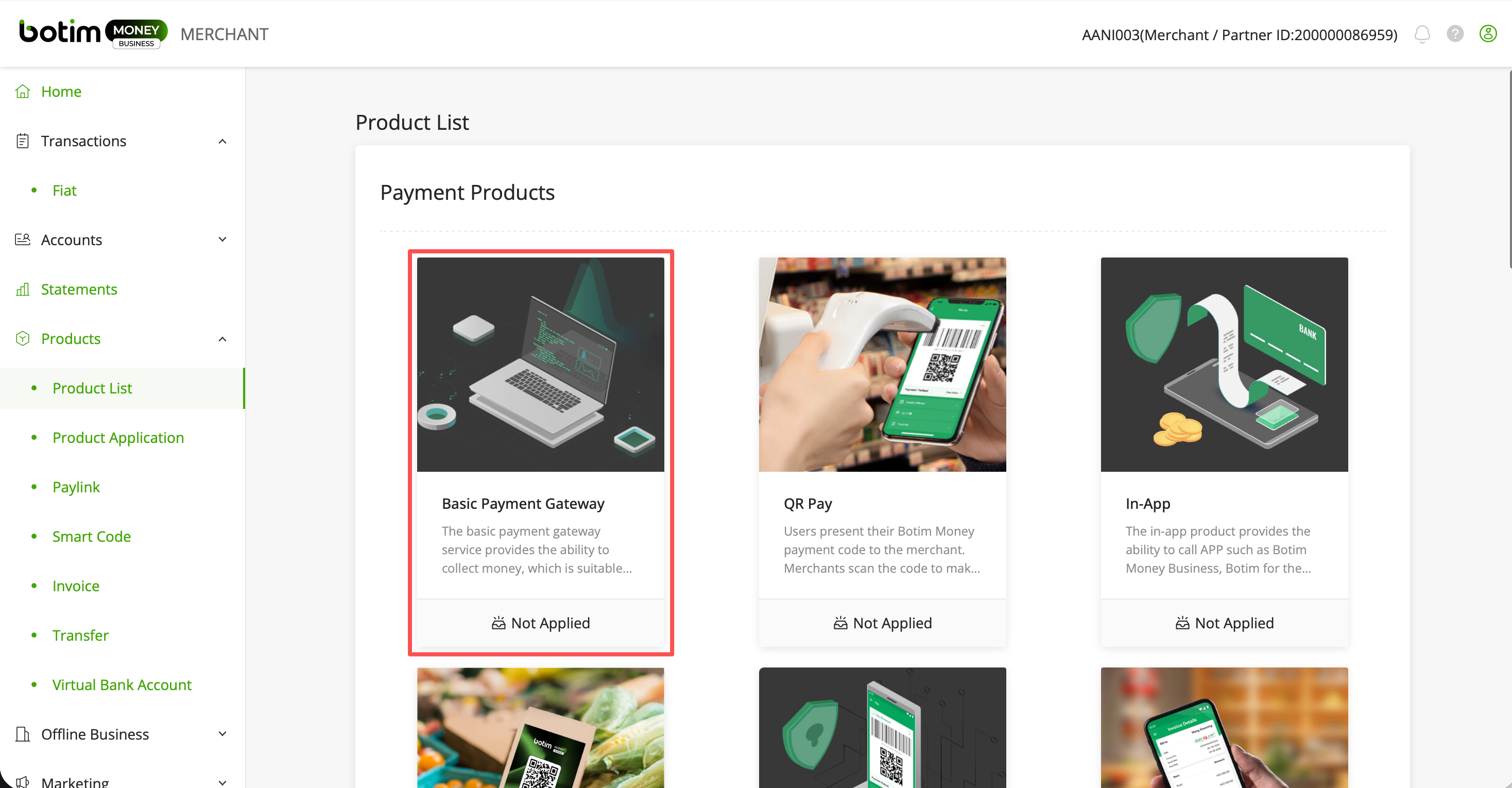
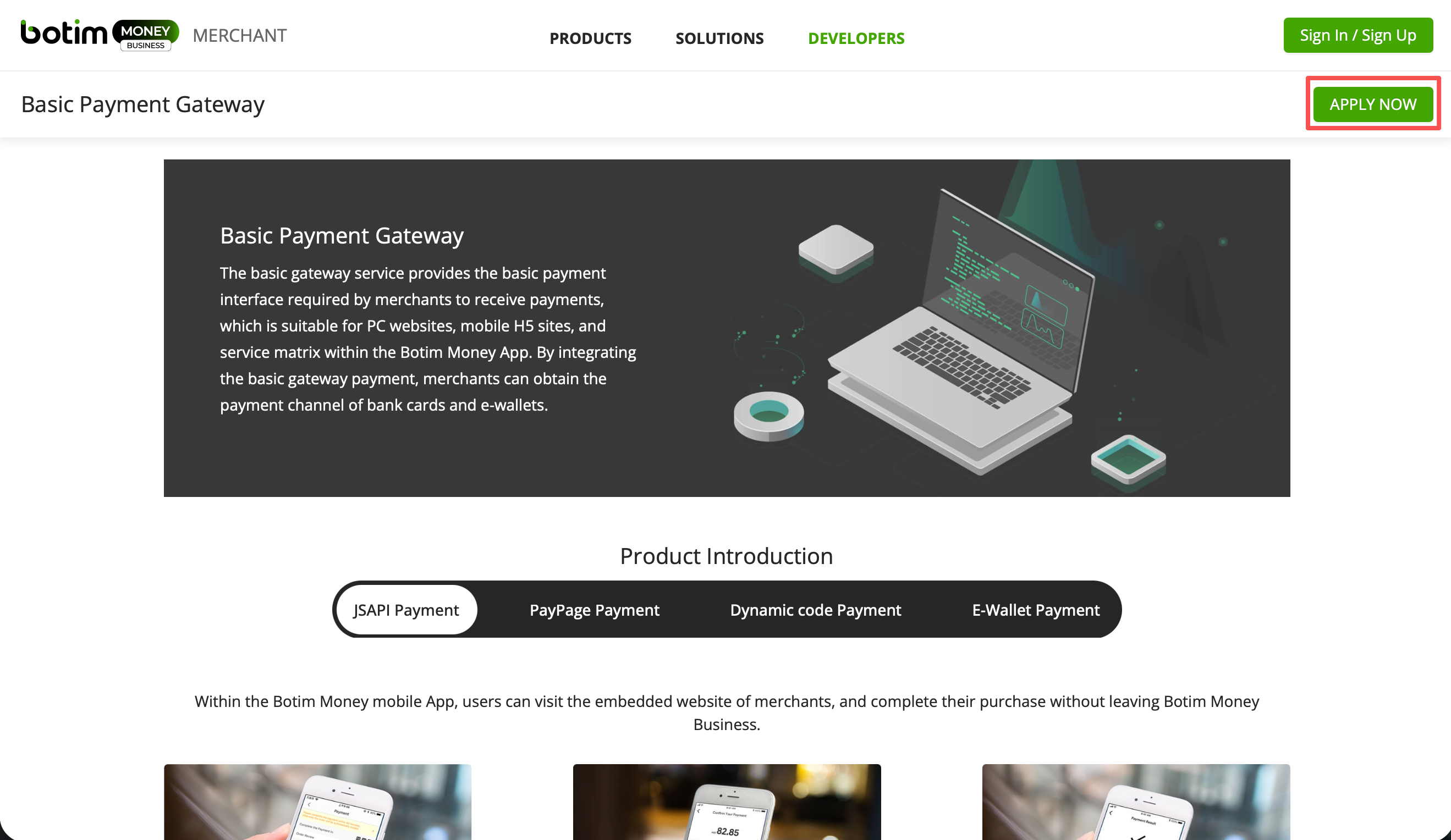
Step 2: Visit the Product List to see the product named Basic Payment Gateway and click APPLY NOW.
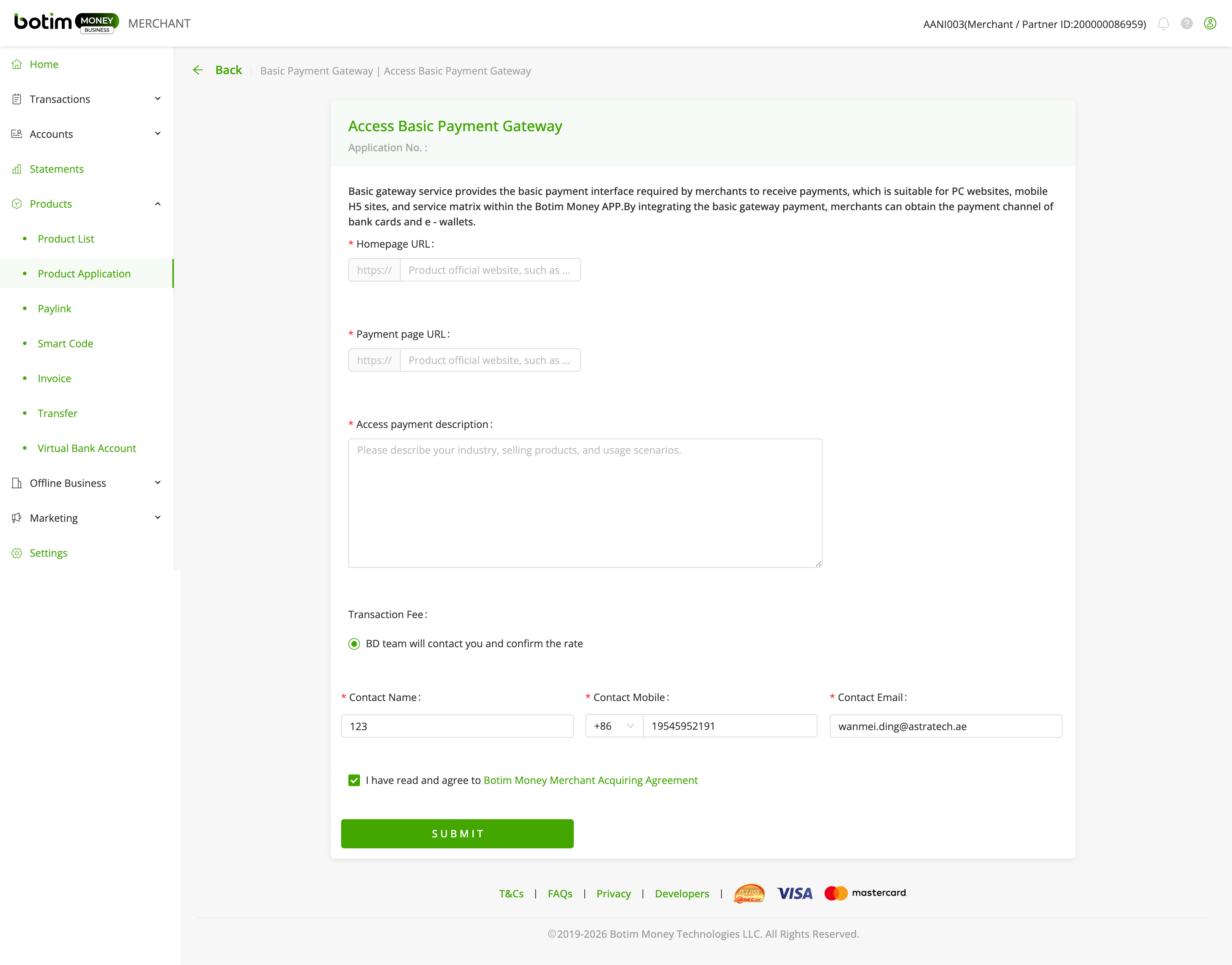
Step 3: Enter the merchant information and submit the application.
Step 4: Once the application is submitted, it will be reviewed by the botimMoney team. This usually takes 1-2 working days.
Generate the API keys from the botimMoney Merchant Portal
After submitting your product activation request, please visit the API Management section of the merchant portal to configure the basic parameters required for the integration.
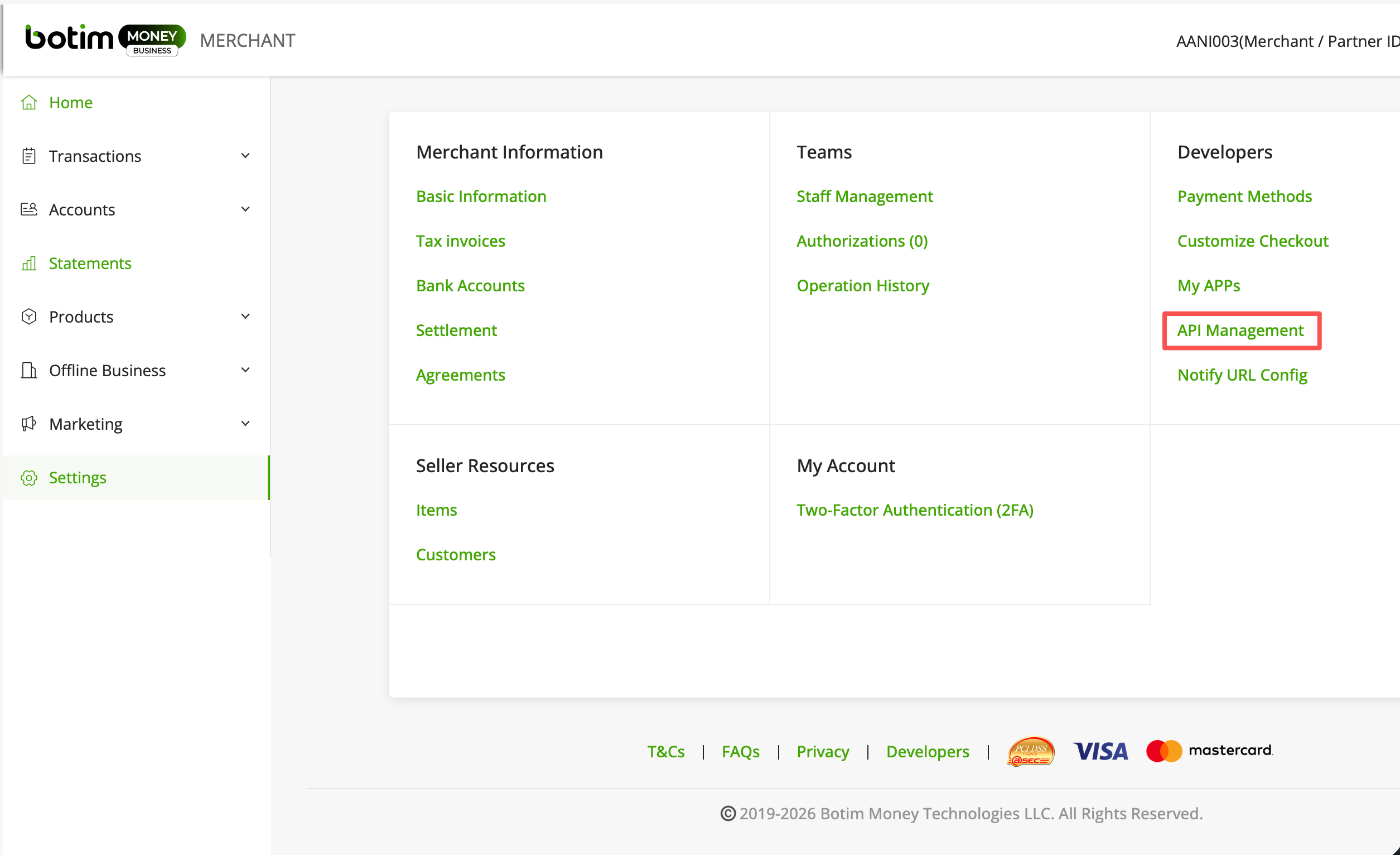
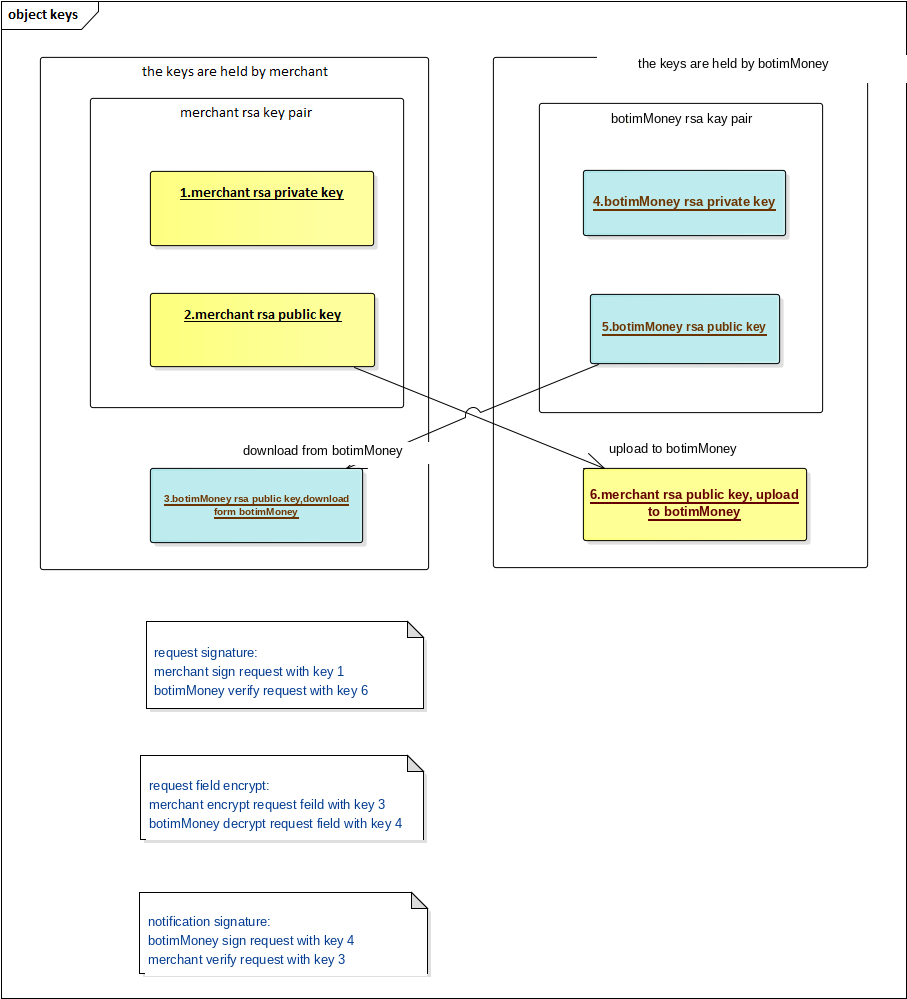
Step 1:Generating the security keys
### Generate private key
# botimMoney_key.pem Private key file name
# 2048 Private key size, at least 2048
openssl genrsa -out botimMoney_key.pem 2048

### Export public key
# botimMoney_key.pem Private key generated in the previous step # botimMoney_key_public.pem Exported public key name
openssl rsa -in botimMoney_key.pem -out botimMoney_key_public.pem -pubout

### Export private key for Java
# botimMoney_key.pem Private key generated in the 1st step
# botimMoney_key_Private.pem
openssl pkcs8 -in botimMoney_key.pem -topk8 -nocrypt -out botimMoney_key_private.pem
Step 2:Upload your public key
Upload "botimMoney_key_public.pem" on this step. This pem is used to signiture the request from merchant.
Step 3:Download botimMoney Public Key
This pem is used to Verify the response from botimMoney and Encrypting senitive information.
[
Step 4:Bind IP address (Required)
This IP address is outbound IP of Merchant system. botimMoney provides you with a strong API through which you can enjoy services such as placeOrder, getOrder, etc. View How To Use via Developers website.
For security reasons, we recommend that API should bind at least one IP address.
If there is only one IP address, you can enter it directly. If there is more than one IP address, you should separate them with halfwidth comma (e.g. 192.168.1.1,192.168.1.2,192.168.1.3) or Replace with (e.g. 192.168..,172.16.9.,192.168.1.1). If you want to allow any ip addresses,you can only enter *."
Integration Steps
Step 1: Download
Download from: https://cdn-web-glb.botim.me/upd/v1/res/common/money/plugins/botim_money.ocmod.zip
Step 2: Install Plugin
- Set the payment currency to AED – United Arab Emirates Dirham.
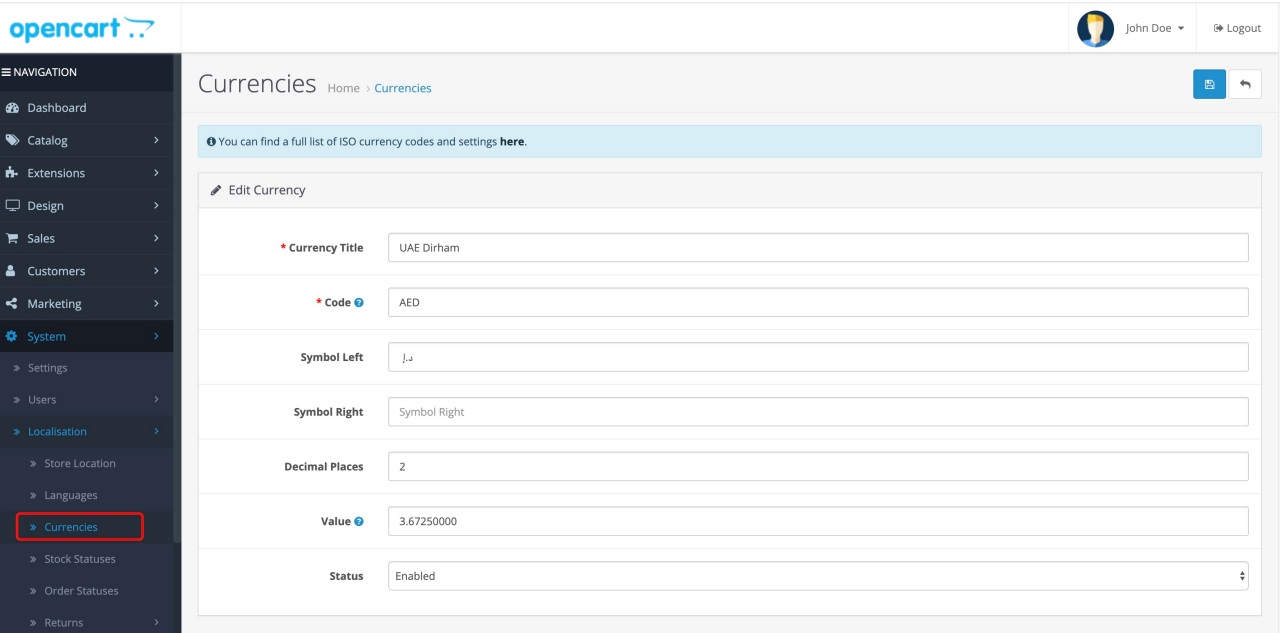
- Set up the Opencart.
- Log into the admin page.
- Navigate to Extension → Installer
- Upload the compressed files called 'botim_money.ocmod.zip'.
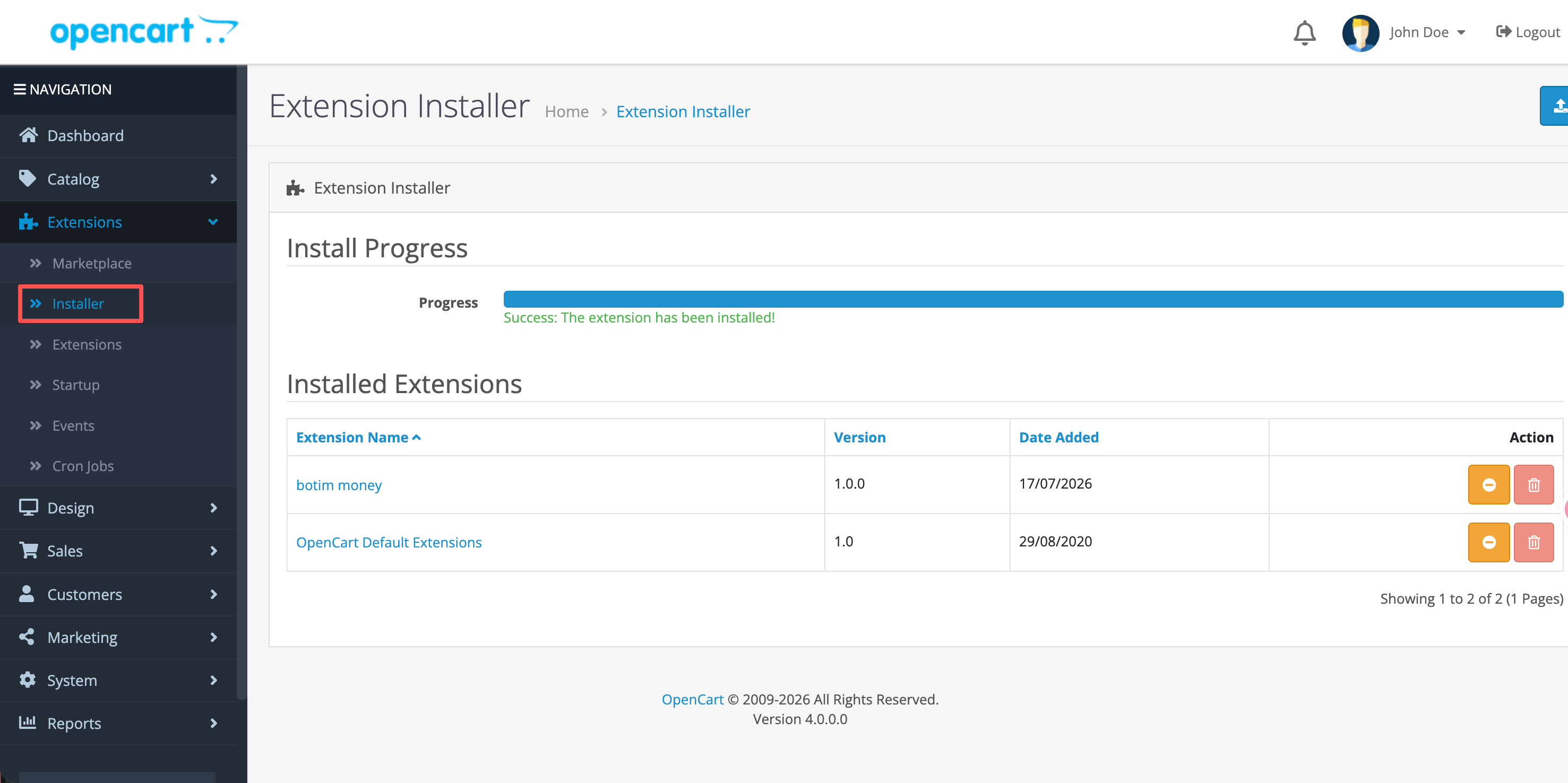
Step 3: Configure Opencart
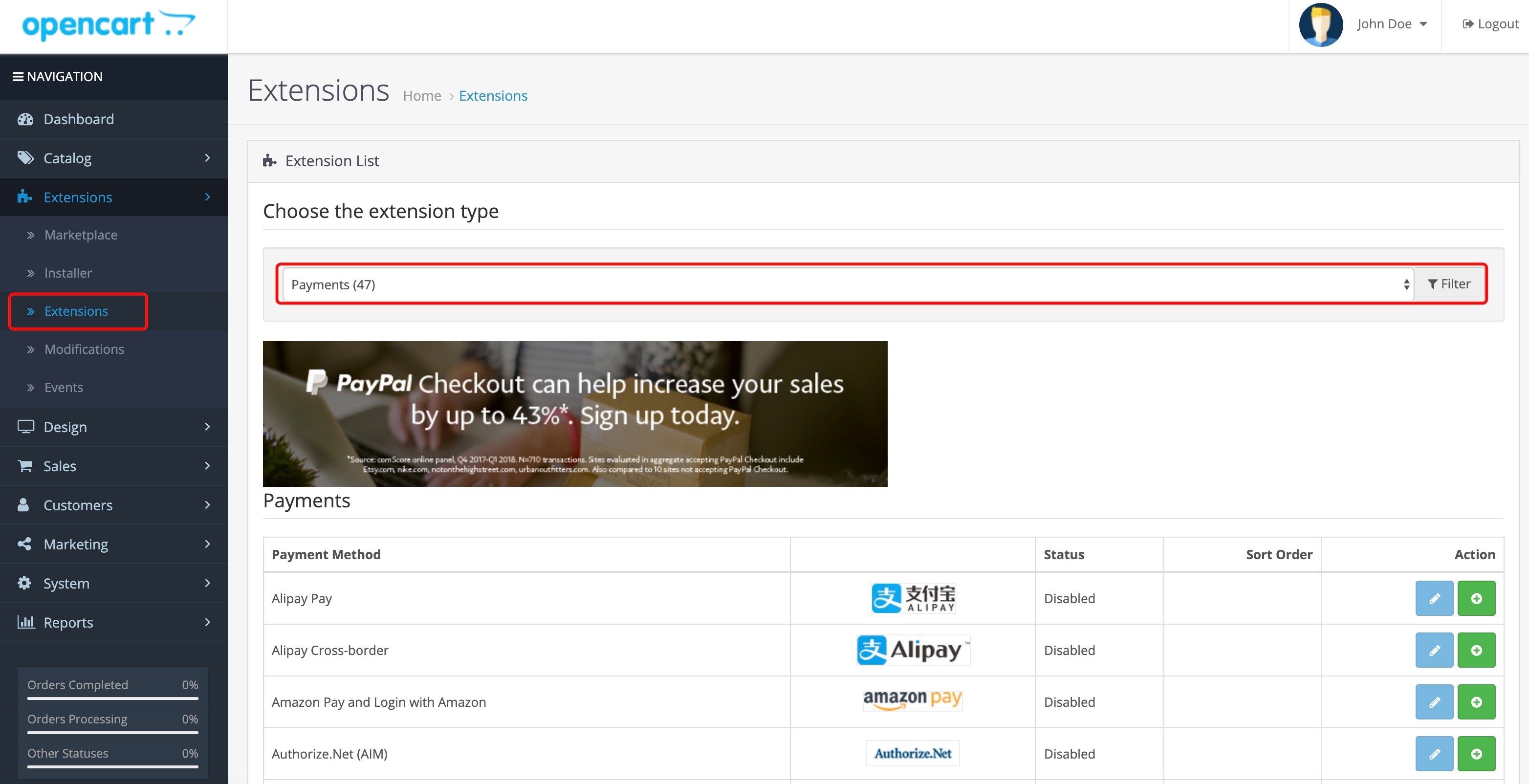
- Navigate to Press Extensions → Extensions
- Select Payments as extension Extension type.
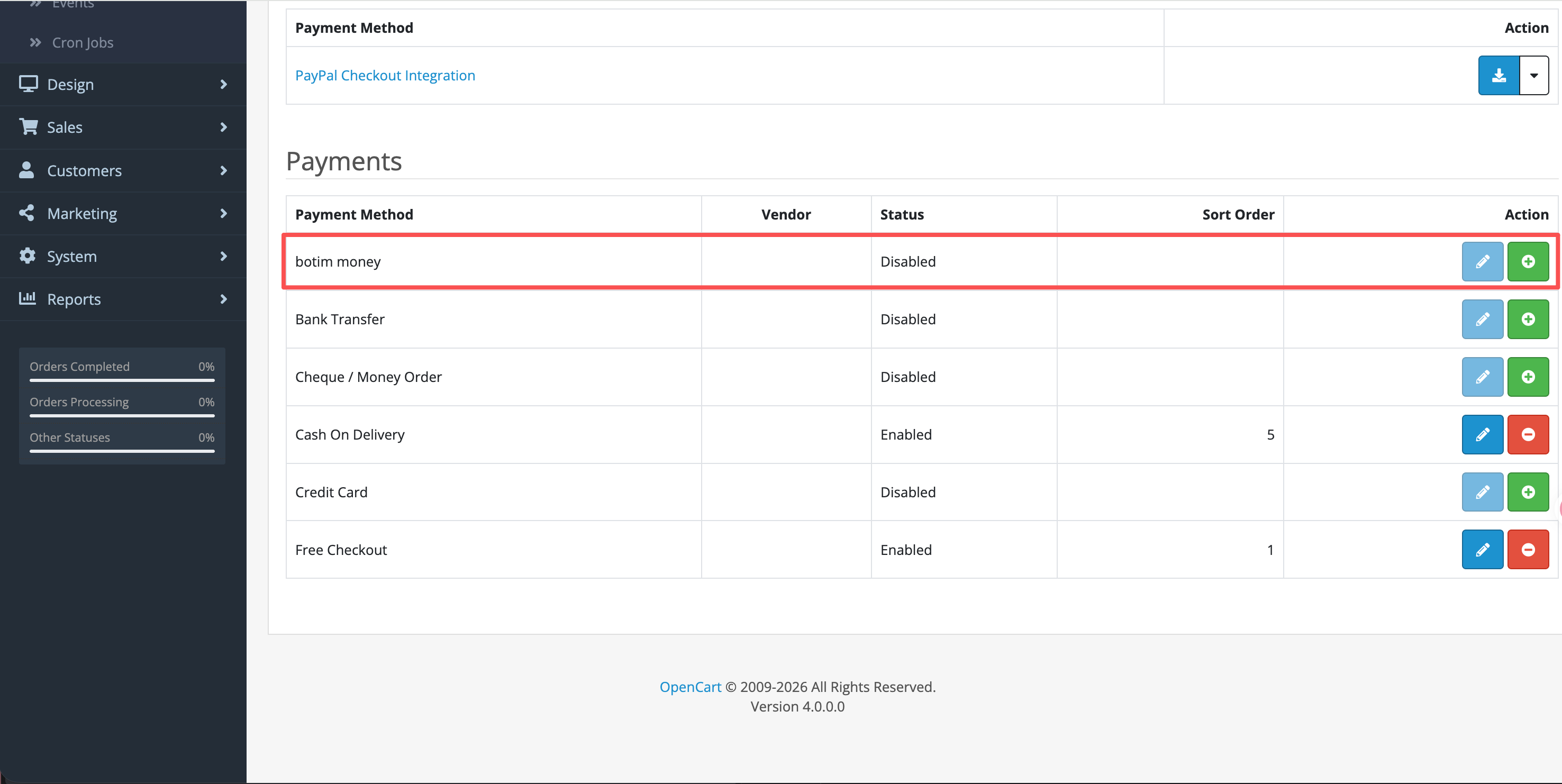
- Click the Install button to activate botimMoney as a payment method.
- Click the Edit button.
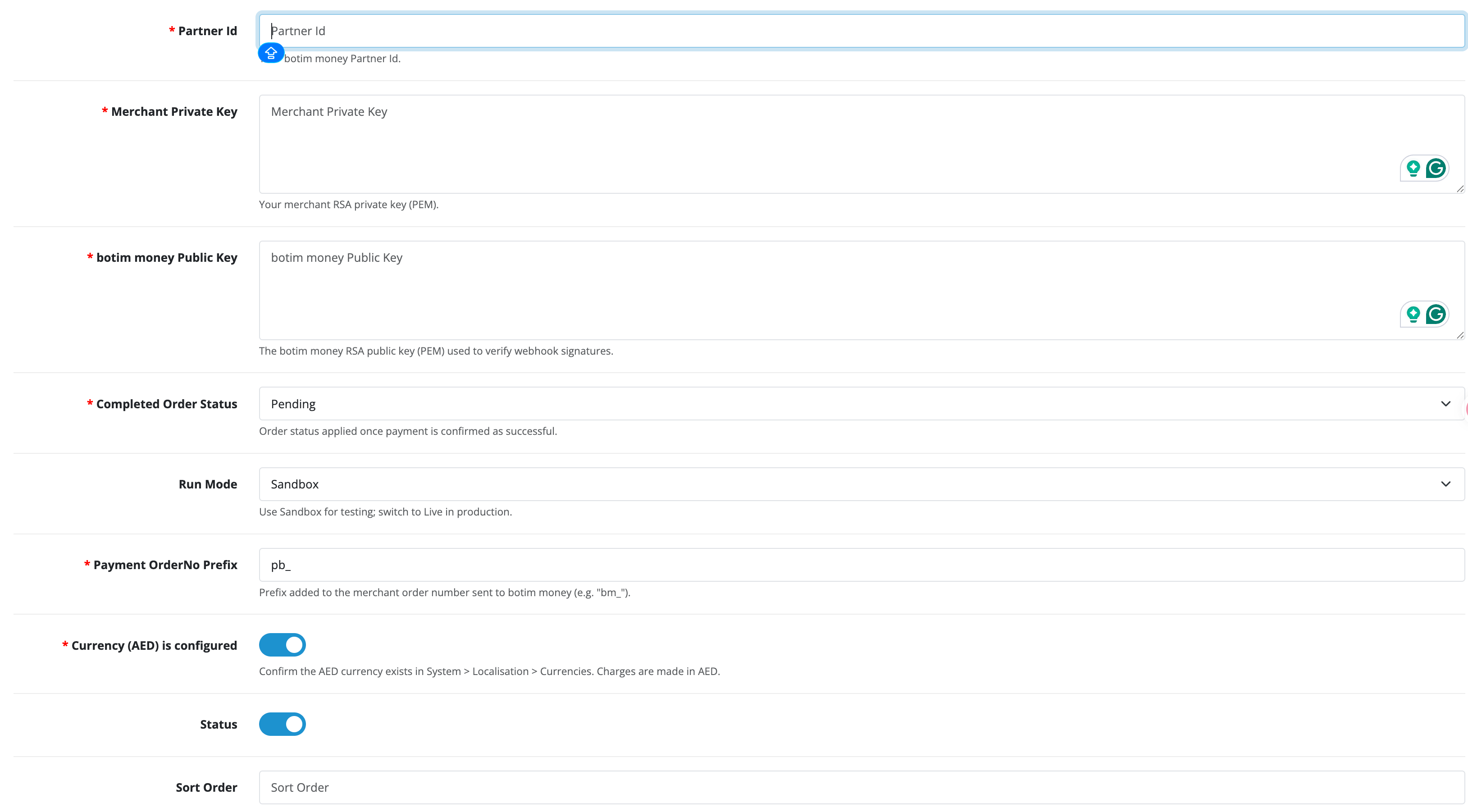
- Enter the Merchant Partner Id provided.
- Enter the Merchant Private Key provided.
- Enter the botimMoney Public Key provided.
- Select the Completed Order Status.
- Select Run Mode UAT for testing, Production for general usage.
- Enter botimMoney Payment OrderNo Prefix like 'pb_'
- Confirm that AED currency is set.
- Change the status to Enabled.
- Click on Save to update the settings.
Step 4: Check front checkout page
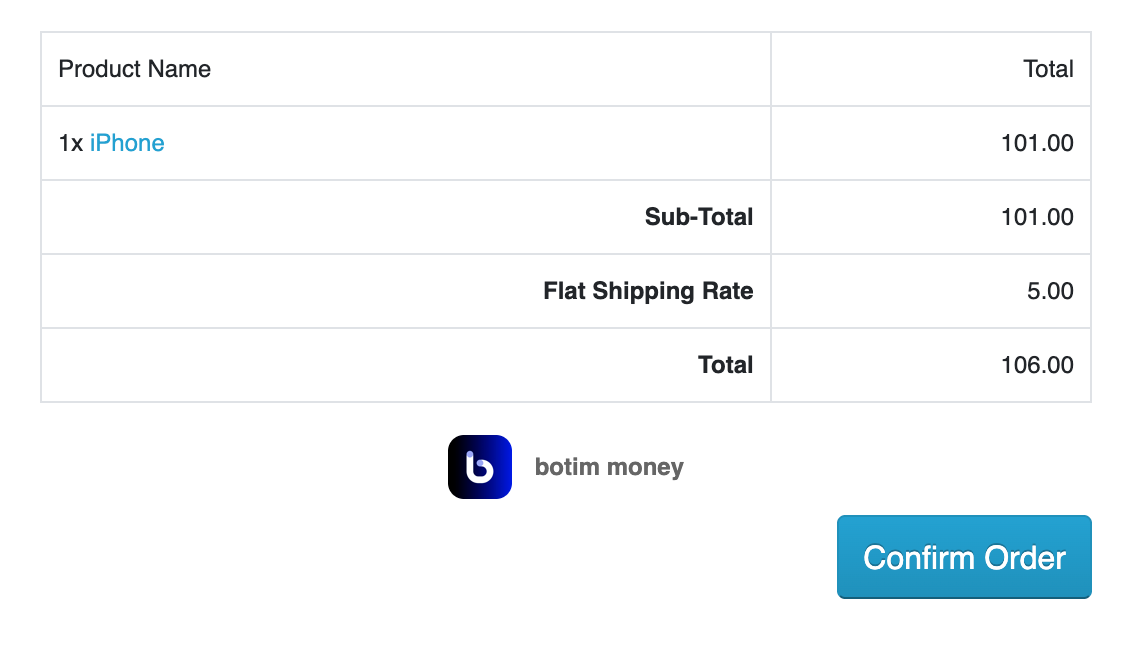
- Select botimMoney as the payment method.
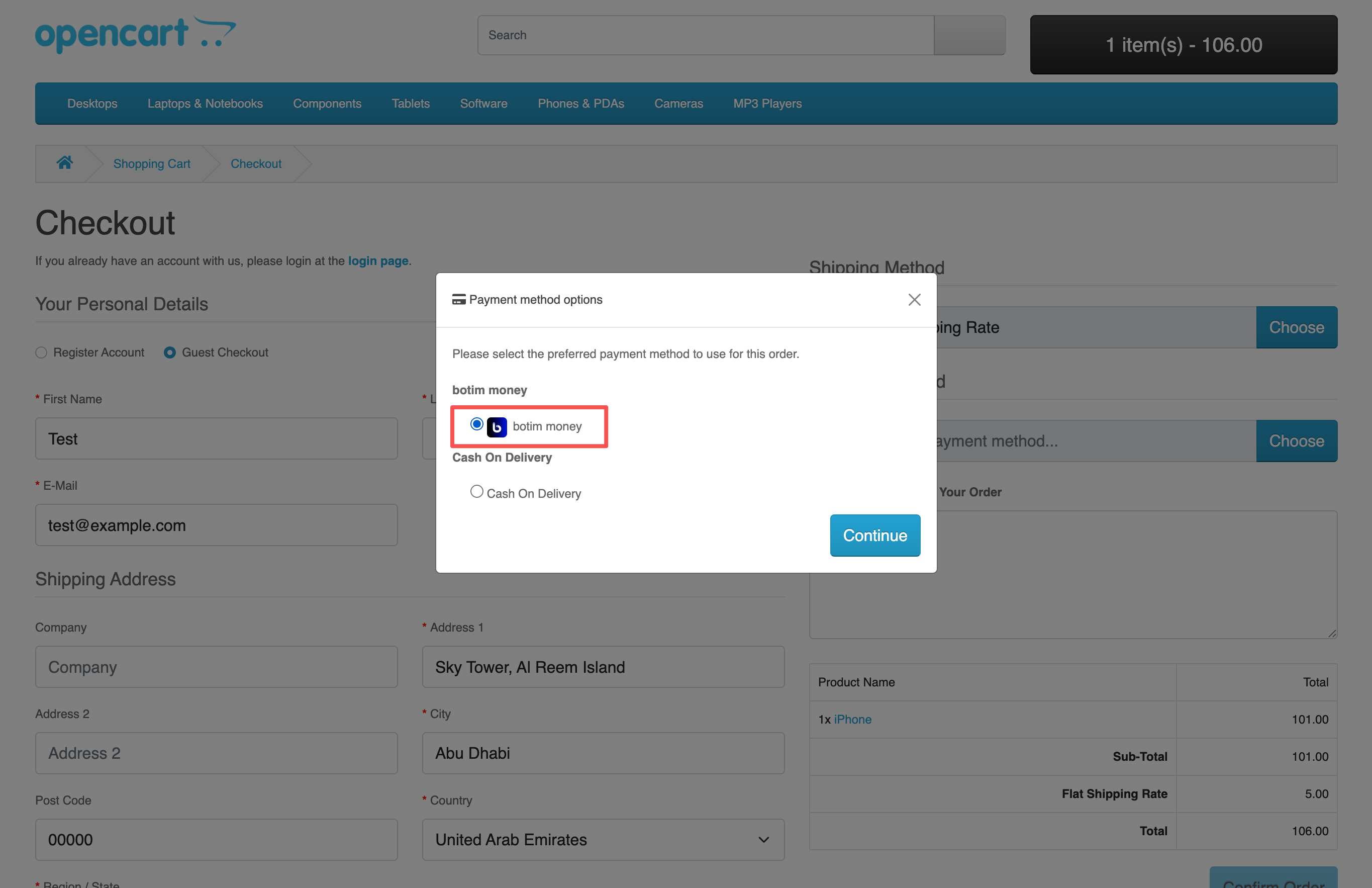
- Confirm Order.
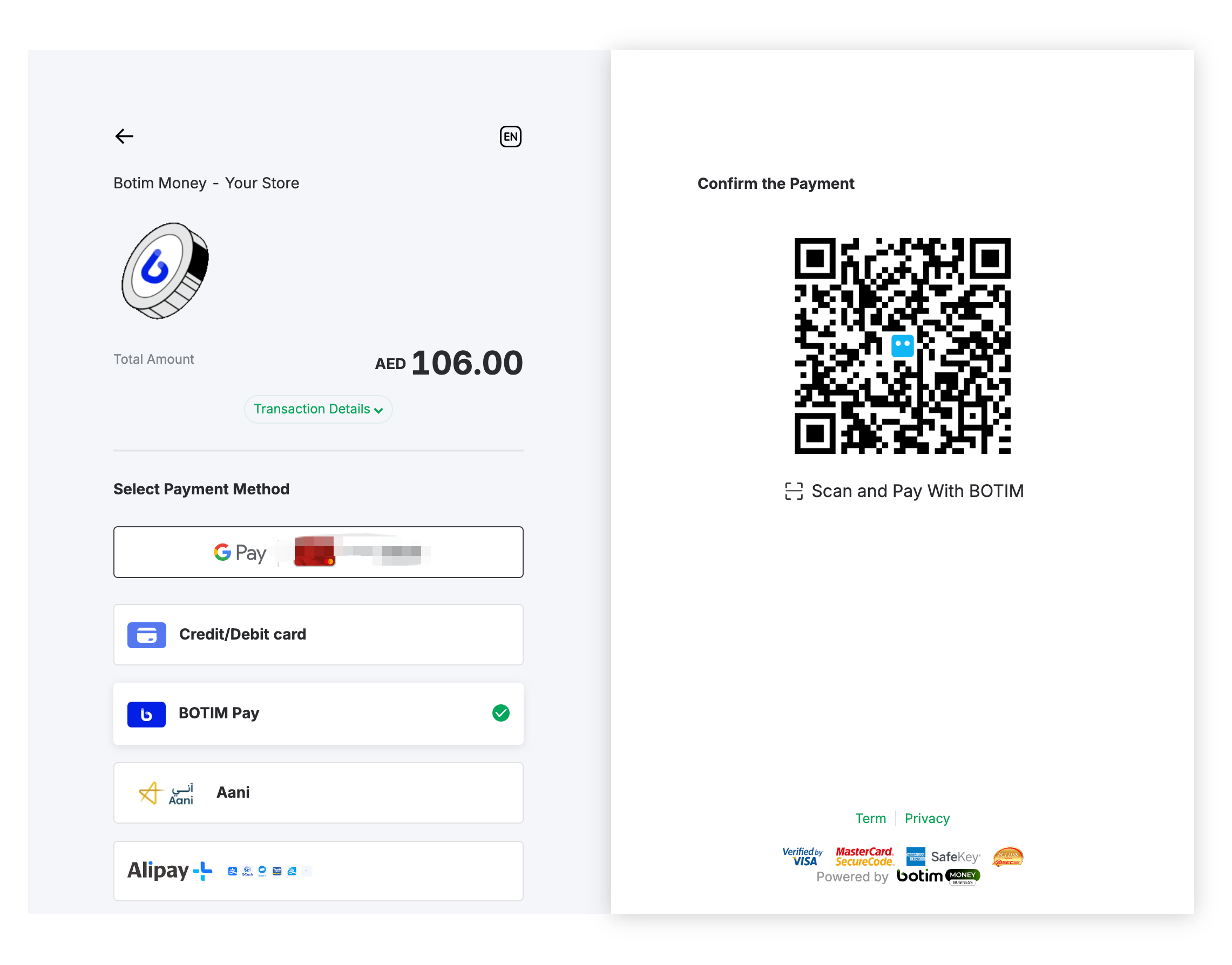
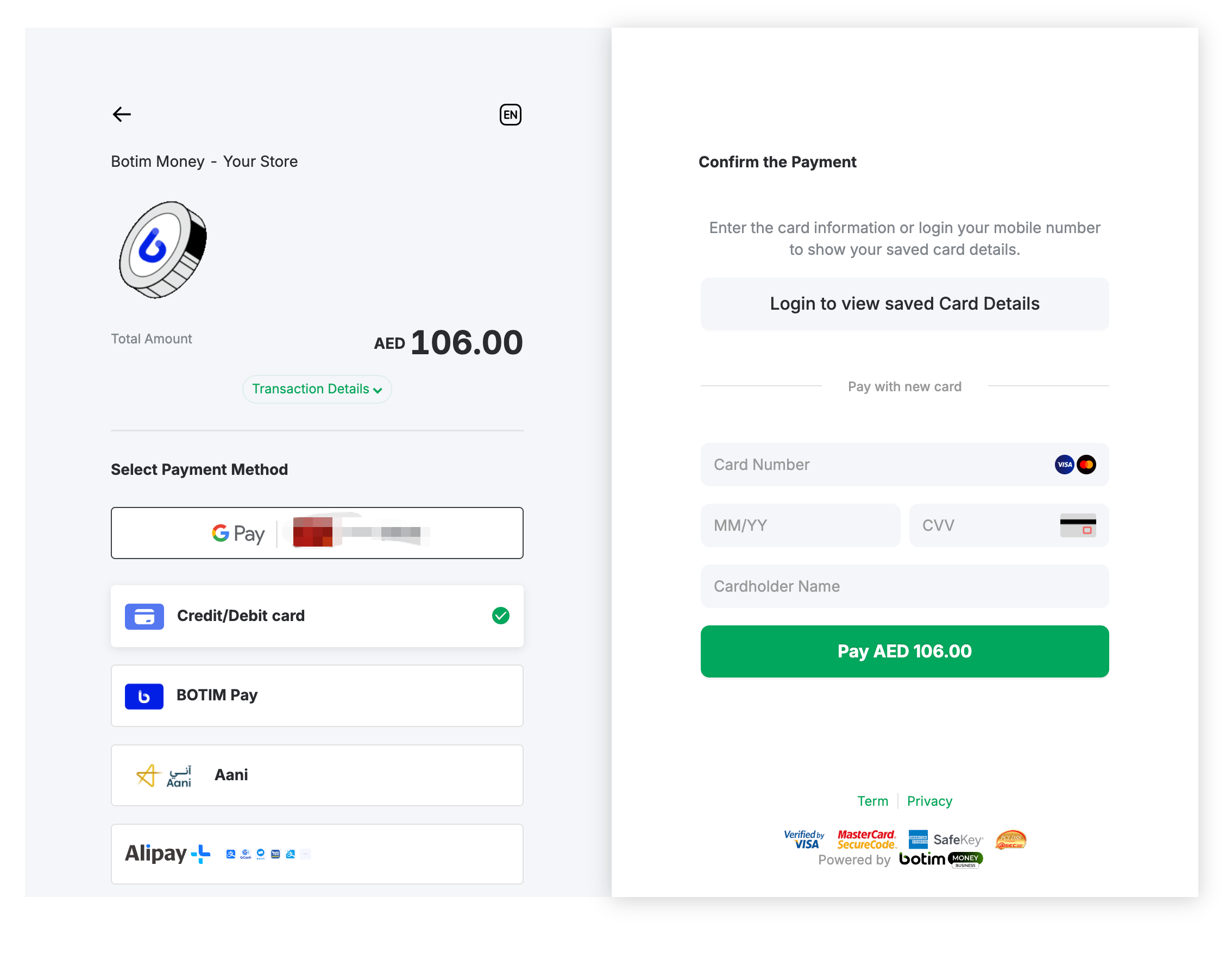
- The page will be redirected to the PayPage, choose to pay by SCAN PAY or CARD PAY.
Option A:
Option B:
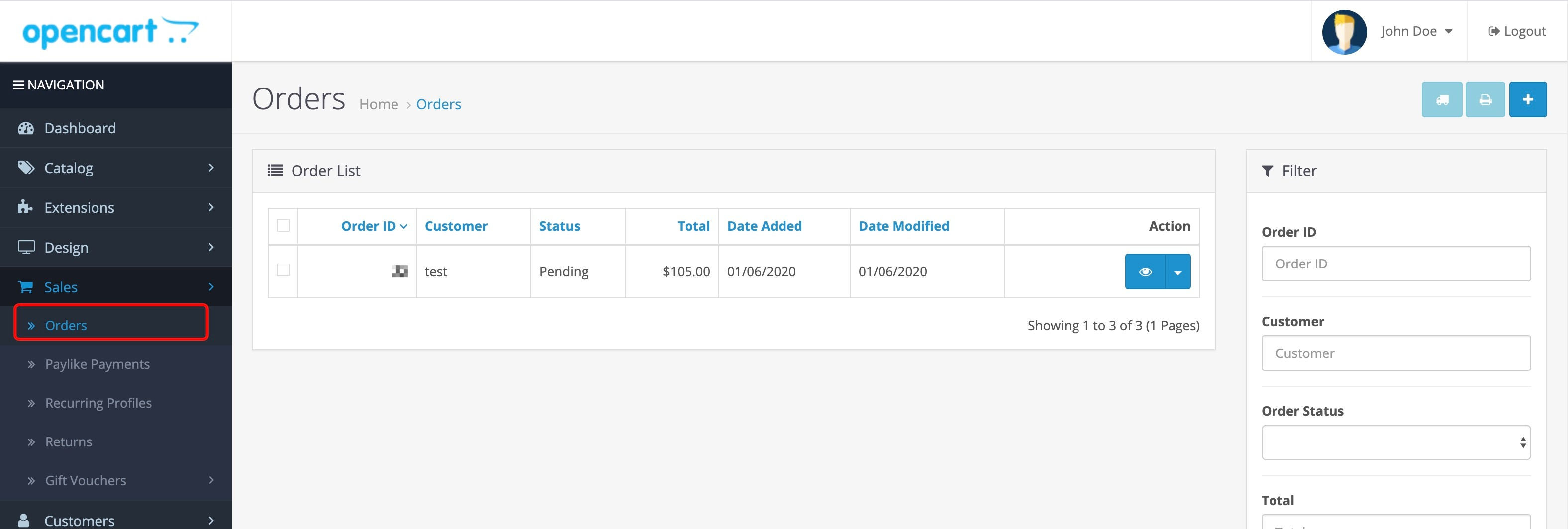
- View payment results in Orders.